 AXWare Systems - Timing Is EVERYTHING!
 AXWare Systems - Competition Timing Systems!
 AXWare Systems - Timing Is EVERYTHING!
 AXWare Systems - Competition Timing Systems!
 AXWare Systems - Timing Is EVERYTHING!
 AXWare Systems - Competition Timing Systems!
 AXWare Systems - Timing Is EVERYTHING!
AXWareTS - AXWareStaging Android App (networking)
It works in the following manner:
- Connects to the T&S Server as a Staging Client
- Once connected, the registration list is sent to AXWareStaging App.
- The registration list is provided in an Expandable Class list or by Car Numbers.
- The classing structure for AXWareTS is supported 100% and reflected in the entries.
- vehicles are staged by simple clicking on the staging button (green button with the class and car number) for any entry.
- Connectivity control is displayed to verify if the connection is healthy or broken, and provides functions to reconnect or refresh the registration list, whenever necessary.
-
Since staging is still a coordinated effort, T&S should
still verify that the proper vehicles are staged but allow the staging
worker to enter the entries. If an incorrect vehicle is staged (wrong
vehicle selected) or the vehicle is missing, T&S must fix the sequencing or
enter the car accordingly. This should not be necessary often, if at all, if
the registration list is accurate and consistent.
A set of screens are shown below that display the basic functionality.
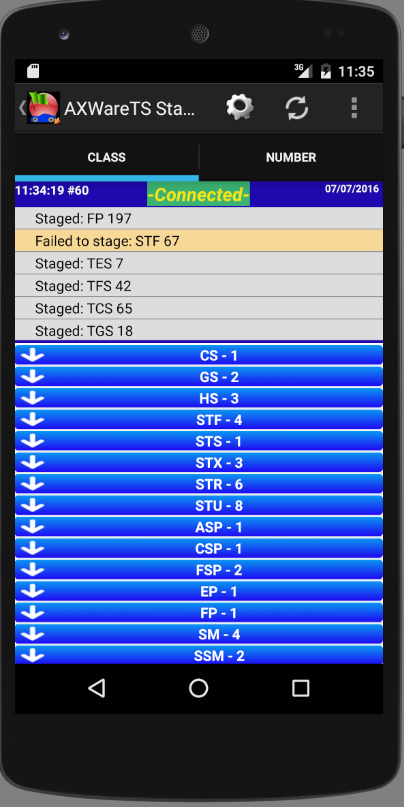
Below is an example of a collapsed staging list by class when the App first connects to the Timing Server.
- The settings can be modified to auto-expand.
- Click on the class header to expand or collapse the list accordingly.
- Normal scroll functions allow you to move around the list as necessary.
- Switch between the CLASS and NUMBER tab as desired. Switch can help find a car that has pulled to the line.
- The connection status is monitored in real-time.
- Connected - must be displayed for staged entries to be successfully sent to the T&S Server.
-
Laststaged - this label will be replaced with the class
and number of successfully stage entries. See below for examples.
If staging an entry fails for any reason, " Failed To Stage: " will be displayed instead. You must find the cause or reconnect as necessary.
Android Control bar.
- Settings allow you the option to auto expand the Class Lists
- Force the Class to be displayed on each entry. By default, the CLASS tab shows the class in the header, and the number of each vehicle.
- auto-reload the Registration list on each new connection or re-connection to the T&S Server.
- Refresh button will force the Registration List to be resent by the T&S Computer. Might be a good option before each heat of the event.
- Connect/Disconnect button (access by clicking the addition control bar options).
-
If the status shows 'DISCONNECTED' at the top of the screen, you
can attempt to reconnect by pressing the CONNECT function or backup
to the opening screen and re-activate the connection to the Timing Server.
Note: the Registration List is loaded one time during the load process and retained in the device. If changes are being made to the registration list, a refresh would be required to update the list. To refresh press the default refresh icon.
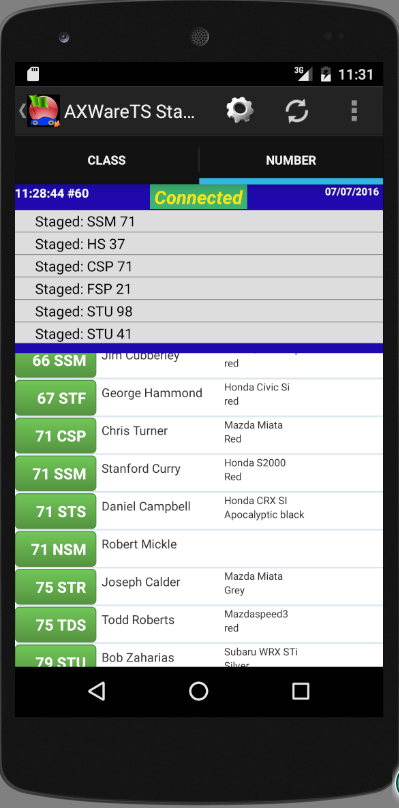
In this 2nd example (below), the NUMBER tab is active and shows all the vehicles in numerical order (1,2,3...etc).
The list may be scrolled easily and quickly to find the proper vehicle as necessary.
Copyright © 2026 - AXWare Systems